How to Enable DLSS 4.5 Dynamic Frame Generation A Complete Setup Guide
Desktops
Previously, we introduced the groundbreaking features of NVIDIA DLSS 4.5, which has significantly redefined the immersive gaming experience. By enhancing image quality and ensuring high frame rates without stuttering, DLSS 4.5—especially when paired with a QD-OLED display—creates the ultimate gaming setup.
However, the version available at that time was not yet complete. While NVIDIA had announced the 6x frame boost capability, it had not been officially released to the public. That has now changed. With the recent launch of the latest drivers, desktop PCs equipped with RTX 50 series GPUs can finally unlock this feature to push gaming performance to its absolute maximum.
In this guide, we will walk you through how to activate NVIDIA Dynamic Frame Generation and optimize your settings for the smoothest gameplay possible.
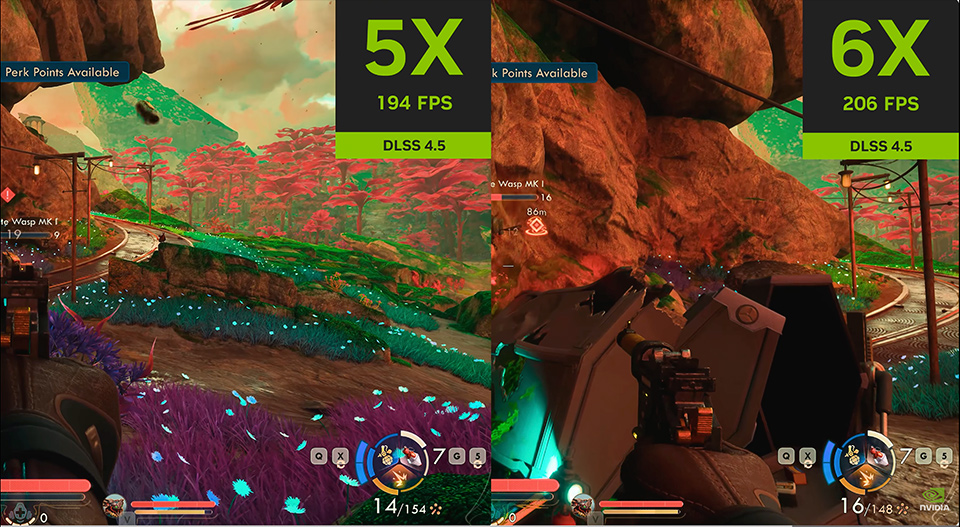
NVIDIA Dynamic Frame Generation allows games to run at much higher FPS, offering a fluid and seamless experience during gameplay. With frame rates easily reaching 200 FPS in most AAA titles, an ultra-high refresh rate monitor has now become a standard piece of gear for any enthusiast setup.
Activating DLSS Dynamic Multi-Frame Generation requires a key component: an RTX 50 series graphics card. Most DLSS 4.5 functions rely on the newer GPU architecture to operate effectively. Older graphics cards, due to hardware limitations, cannot support or perform well with DLSS 4.5 features. Attempting to run these functions on unsupported hardware could even lead to performance degradation and disrupt your gaming experience. This is why having a proper graphics card is essential to fully activate and enjoy this technology.
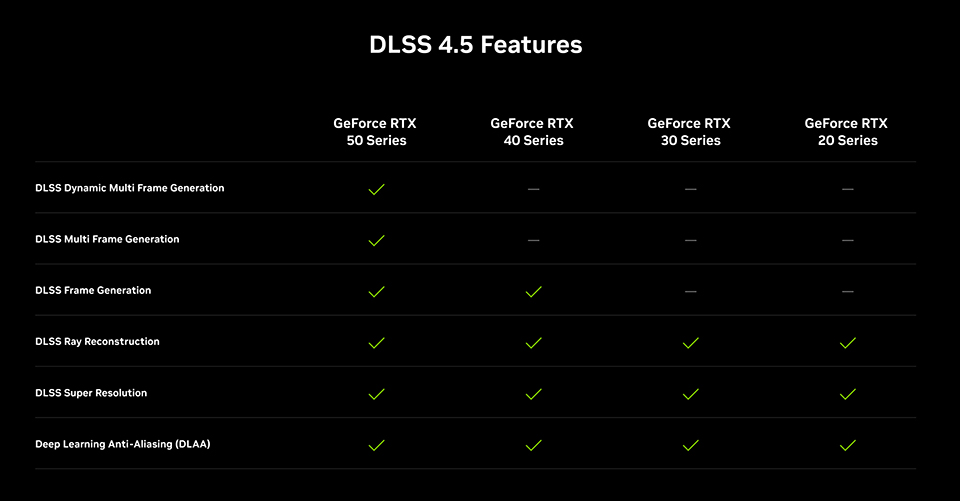
This is the DLSS 4.5 feature list; most of these functions are built upon the RTX 50 series GPU architecture to deliver improved performance.
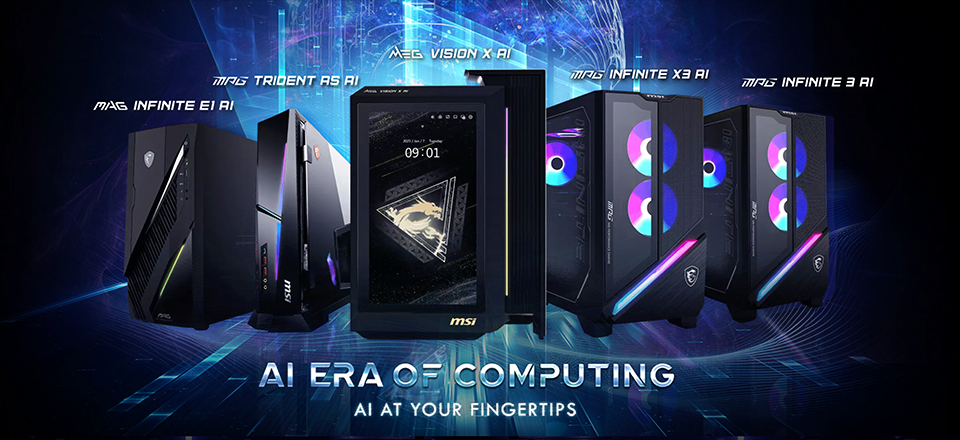
The entire MSI gaming PC product family supports NVIDIA RTX 50 series graphics cards, fully enabling NVIDIA’s advanced AI technologies and the DLSS Dynamic Multi-Frame Generation feature. As mentioned previously, DLSS 4.5 delivers exceptionally smooth frame rates and beautiful image quality. Beyond gaming, NVIDIA offers a suite of applications to enhance daily usage. For instance, RTX Video HDR converts SDR content into HDR for a more immersive entertainment experience. The NVIDIA Broadcast app allows beginners to livestream effortlessly, while NVIDIA Smooth Motion unlocks FPS limitations in legacy titles for a more fluid experience. These AI technologies collectively empower every aspect of the PC experience. For more NVIDIA AI tutorials, you can check the links in the article below.
NVIDIA Smooth Motion: https://www.msi.com/blog/why-the-rtx-5060-and-rtx-5060-ti-are-great-choices-for-1080p-gaming-with-ai-enhancements
NVIDIA RTX Video HDR: https://www.msi.com/blog/how-to-turn-sdr-content-into-hdr
NVIDIA Broadcast App: https://www.msi.com/blog/msi-nvidia-studio-broadcast-tutorial
NVIDIA RTX Video HDR: https://www.msi.com/blog/how-to-turn-sdr-content-into-hdr
NVIDIA Broadcast App: https://www.msi.com/blog/msi-nvidia-studio-broadcast-tutorial
Now, let’s move on to the setup guide. As always, the first step is to ensure that both the NVIDIA App and your graphics drivers are updated to the latest versions. This is essential for running the new DLSS Dynamic Multi-Frame Generation feature. While the official “Dynamic” mode scales your frame generation based on your target frame rate, we are going to use the “Fixed” mode to always run at the new maximum 6x multipler so you can experience the absolute highest frame rates possible Once the updates are complete, follow these simple steps to enable it.
- Open the NVIDIA App, click the "Graphics" tab, and then select "Global Settings."
- Find "DLSS Override – Frame Generation Mode" and click on "Use 3D App Setting."
- In the pop-up window, select "Fixed," set the "Multiplier" to "6x," and then click Apply.
- Launch your game and enable "DLSS Frame Generation." Note that while the in-game menu may still only show 2x, 3x, or 4x options, the system is already operating with a 6x boost.
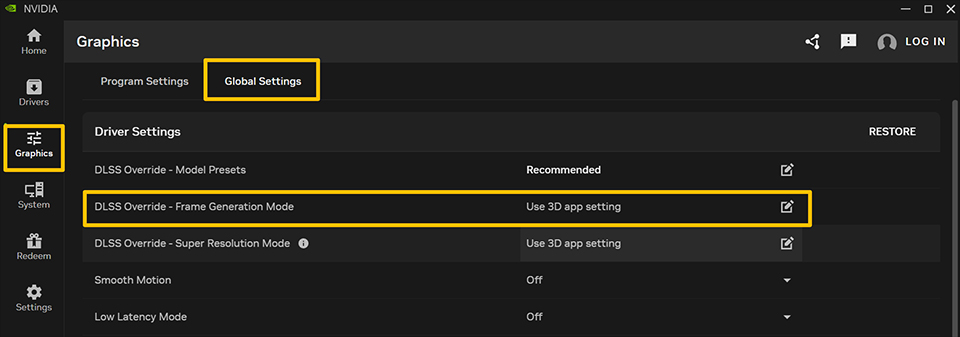
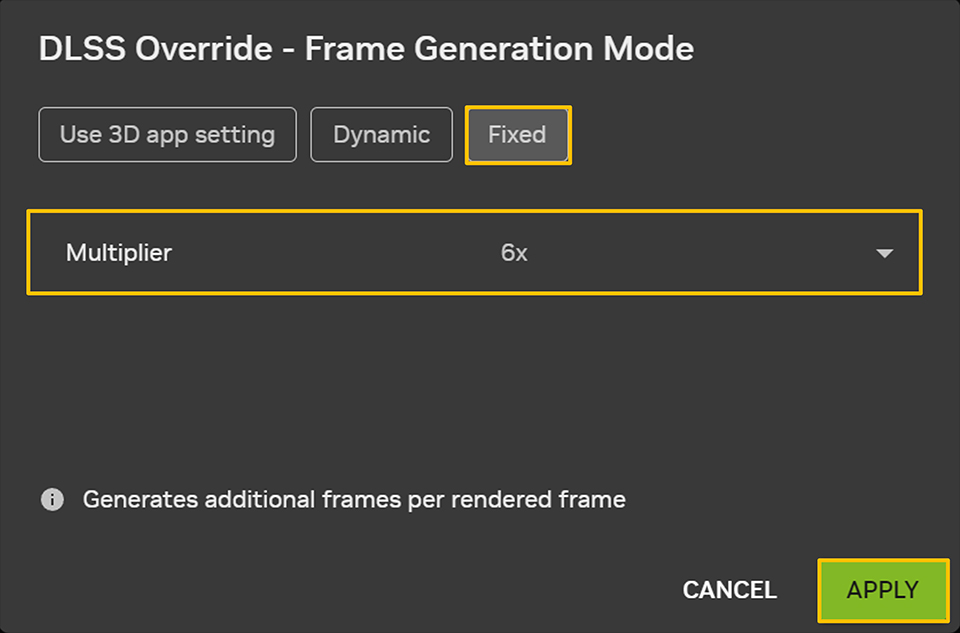
With these settings applied, you are essentially ready to go. But how can we verify if the game is truly running with a 6x FPS boost? Generally, if you notice a significant jump in frame rates, the function is likely working. Another way to confirm is by using the NVIDIA Overlay to check the real-time DLSS status. Follow the steps below to set up the NVIDIA Overlay and verify the results.
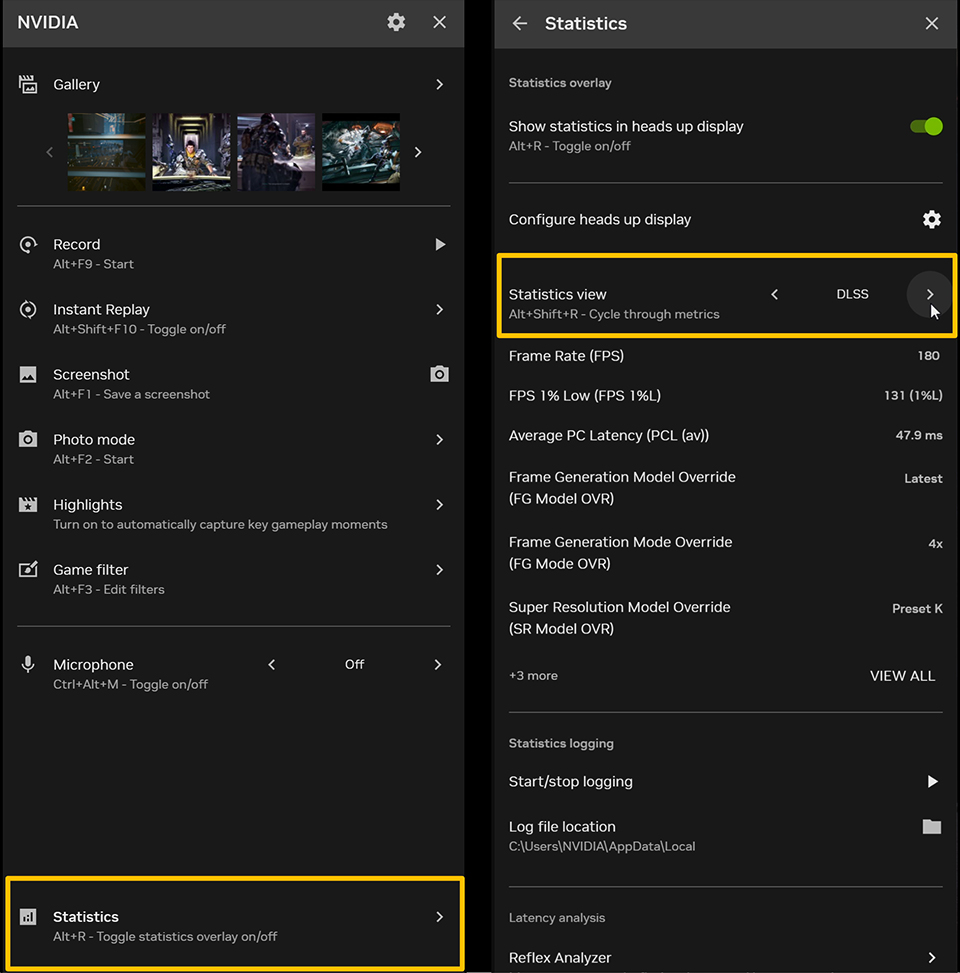
- Press "Alt + Z" to bring up the NVIDIA App overlay panel.
- Click on "Statistics" and select "DLSS" under the Statistics View options.
- While in-game, press "Alt + R" to toggle the performance overlay. You can then verify that DLSS Dynamic Multi-Frame Generation is running at the multiplier you configured.
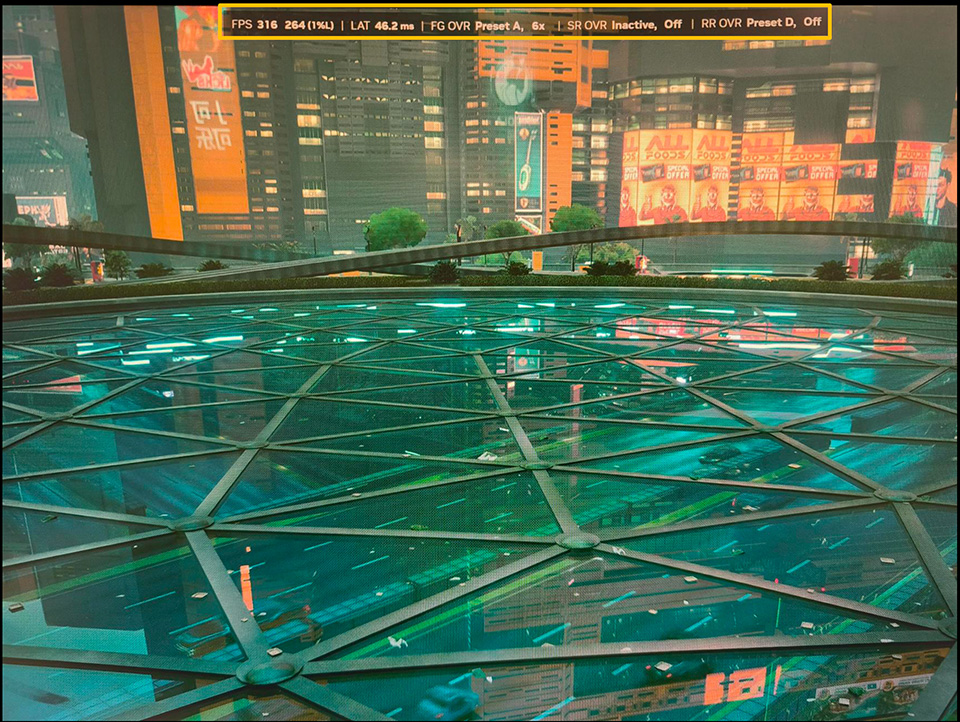
Since the NVIDIA overlay cannot be captured in a standard screenshot, I used my smartphone to take this photo to show you the overlay in action. The status 'FG OVR Preset A, 6x' indicates that DLSS Dynamic Multi-Frame Generation is currently running with a 6x boost.
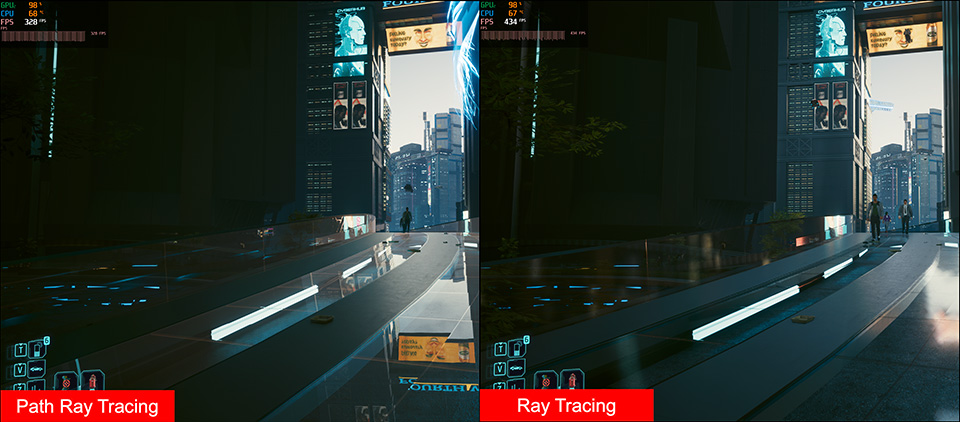
With DLSS Dynamic Multi-Frame Generation boosting FPS by 6x and Path Tracing enhancing the visuals, Night City in Cyberpunk 2077 feels more real than ever. It’s a truly immersive experience.
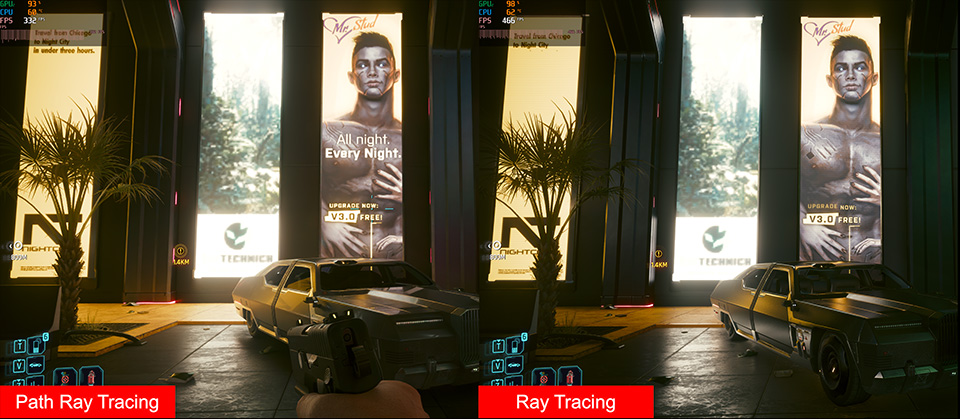
Even without the highest settings, using DLSS Dynamic Multi-Frame Generation with normal Ray Tracing provides a fantastic feel. Ultimately, it all depends on your personal demands.
MEG Vision X AI 2nd: https://www.msi.com/Desktop/MEG-Vision-X-AI-2nd
MPG Infinite X3 AI 2nd: https://www.msi.com/Desktop/MPG-Infinite-X3-AI-2nd
MPG Trident AS AI 2nd: https://www.msi.com/Desktop/MPG-Trident-AS-AI-2nd
MPG Infinite Z3 X3D: https://www.msi.com/Desktop/MPG-Infinite-Z3-X3D-y
MAG Infinite S AI 2nd: https://www.msi.com/Desktop/MAG-Infinite-S-AI-2nd
MPG 322UR QD-OLED X24: https://www.msi.com/Monitor/MPG-322UR-QD-OLED-X24
MAG 321UP QD-OLED X24: https://www.msi.com/Monitor/MAG-321UP-QD-OLED-X24
MPG Infinite X3 AI 2nd: https://www.msi.com/Desktop/MPG-Infinite-X3-AI-2nd
MPG Trident AS AI 2nd: https://www.msi.com/Desktop/MPG-Trident-AS-AI-2nd
MPG Infinite Z3 X3D: https://www.msi.com/Desktop/MPG-Infinite-Z3-X3D-y
MAG Infinite S AI 2nd: https://www.msi.com/Desktop/MAG-Infinite-S-AI-2nd
MPG 322UR QD-OLED X24: https://www.msi.com/Monitor/MPG-322UR-QD-OLED-X24
MAG 321UP QD-OLED X24: https://www.msi.com/Monitor/MAG-321UP-QD-OLED-X24
Game Benchmark Finder is now live!
https://www.msi.com/Landing/find_my_favor
https://www.msi.com/Landing/find_my_favor
Curious how MSI pre-built desktops perform in your favorite games?
Visit Game Benchmark Finder to explore real-world FPS results across various titles and find the perfect MSI pre-built pc that suits your needs.
Visit Game Benchmark Finder to explore real-world FPS results across various titles and find the perfect MSI pre-built pc that suits your needs.