MSI Gaming Intelligence Software Introduction
Overview
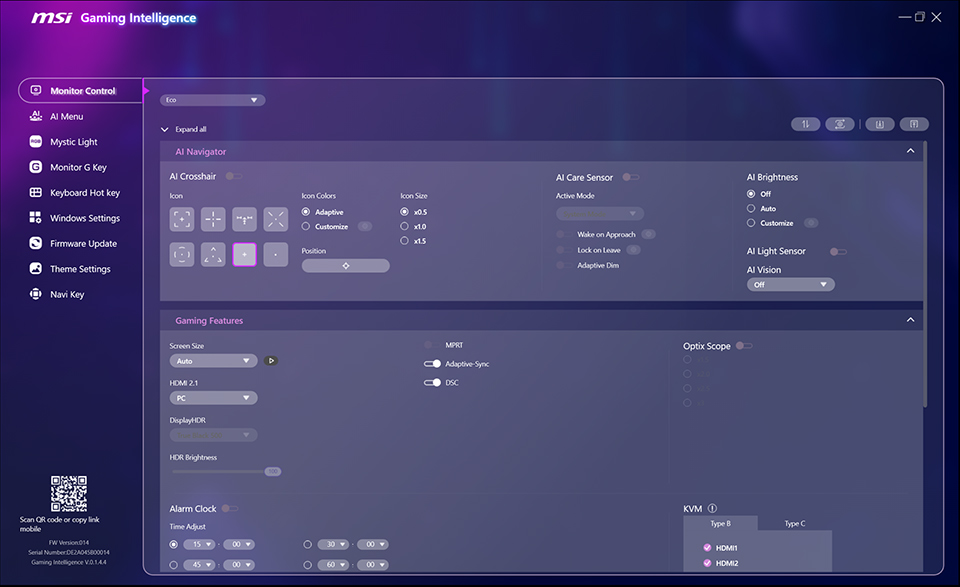
MSI Gaming Intelligence (G.I.) is a powerful software designed to enhance user experience by setting screen functions via keyboard and mouse operations directly. By replacing the need for physical monitor buttons, G.I. offers a more intuitive way to optimize performance without navigating the on-screen menu all the time. Once the monitor is connected via a USB cable with an HDMI or DP cable, you can easily manage monitor controls and optimize performance, such as Monitor Control for picture modes settings, AI Menu for different applications, Mystic Light for customizing RGB lighting, as well as hot key settings for your preference.
For more information, please refer to the detailed video via this link: https://youtu.be/Kcr3kX_kBkE
Gaming Intelligence Introduction
By connecting the monitor to your PC via a USB and HDMI or DP cable, you can access a wide range of settings.
Note: Actual interface/features may vary depending on your software version.
Please refer to your specific version for the most accurate information.
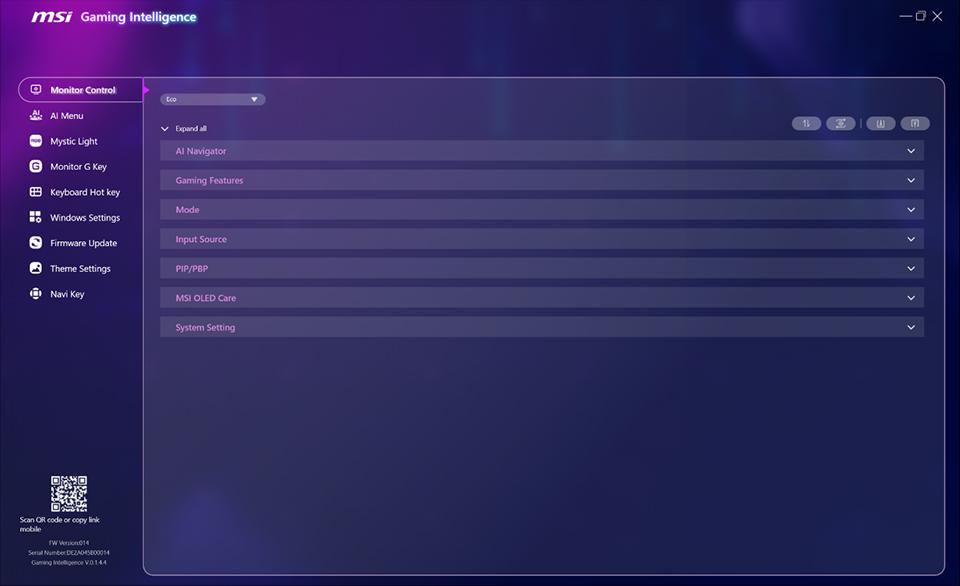
The “Collapse all” feature allows for a clear view and makes it easy to access the specific options you need.
Monitor Control
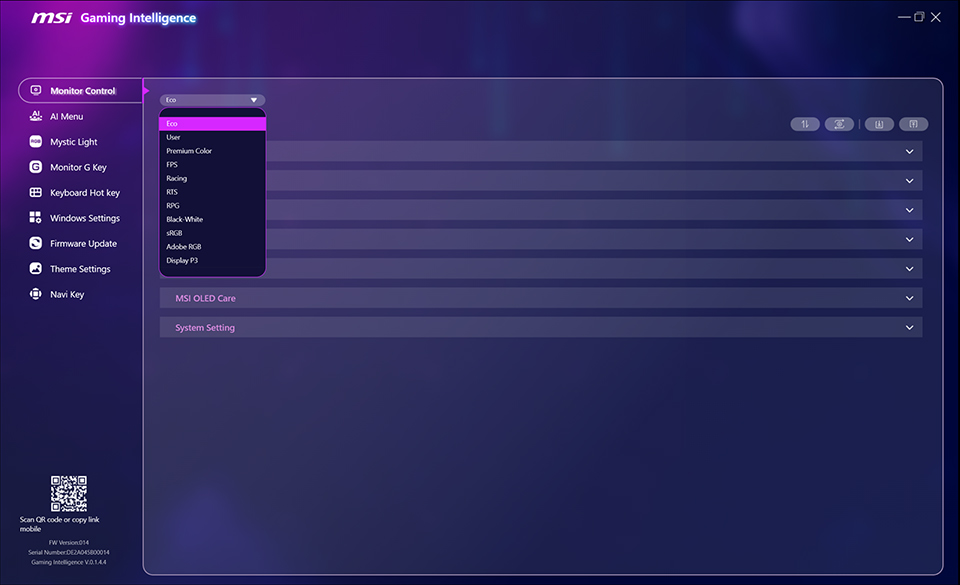
In “Monitor Control”, you can quickly switch between various preset modes, such as Eco, User, FPS, and Racing to suit your current activity.
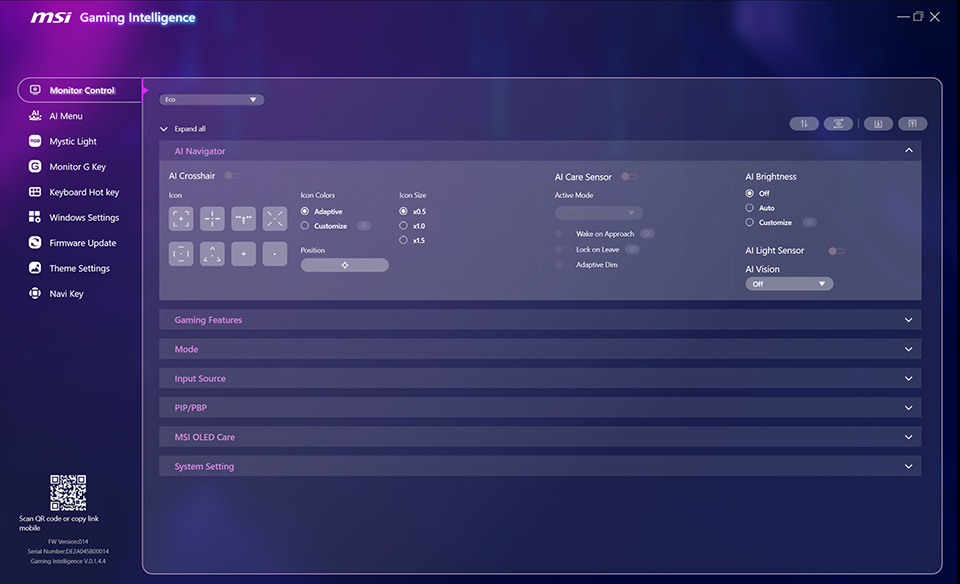
In “AI Navigator” Section from Monitor Control, you can personalize your gameplay with customized crosshair icons, including colors, sizes, and positions. In addition, enable AI Care Sensor, AI Brightness, and AI Light Sensor to optimize the viewing experience while reducing the risk of burn-in on OLED panels.
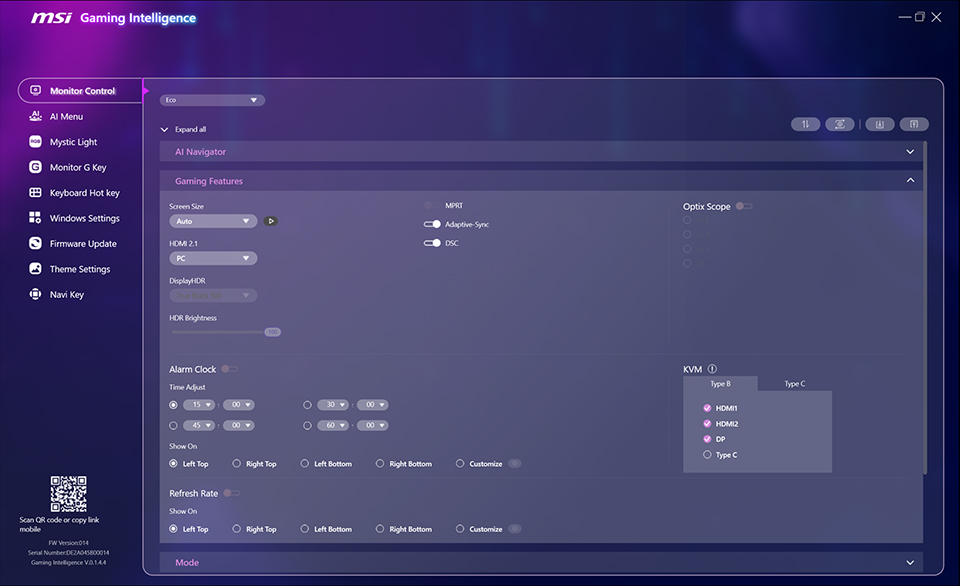
The “Gaming Features” section integrates a variety of settings, like Screen Size, HDR mode options, VRR, Optix Scope and dashboard of Alarm Clock and Refresh Rate for you to quickly switch. Otherwise, built-in KVM settings allow you to control two different systems via a single set of keyboard and mouse for multitasking.
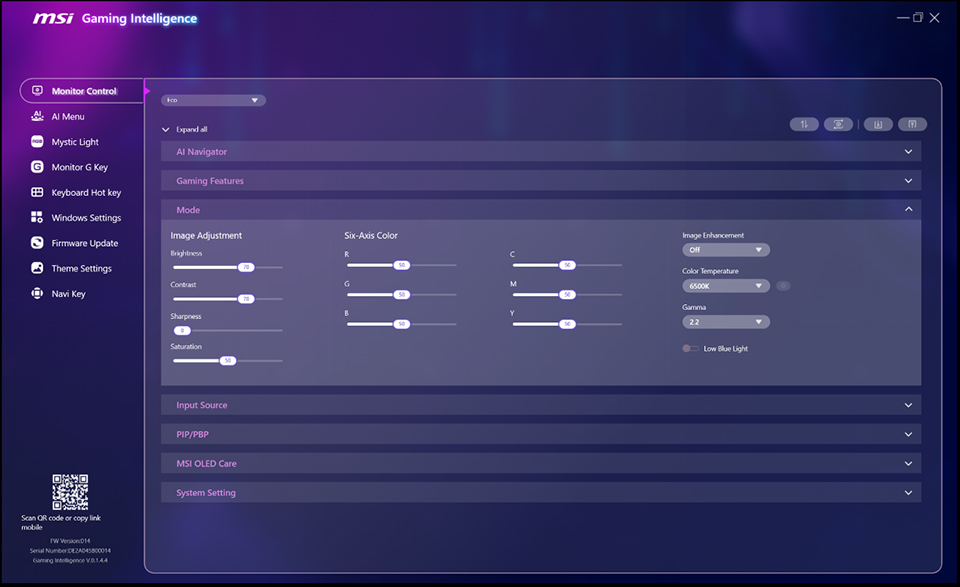
As to “Mode” section, you can customize your needs handily by adjusting the settings of image, like Brightness, Contrast, Sharpness, and Image Enhancement for different modes. For SDR content, Six-Axis Color adjustment is also available for professional-grade color calibration.
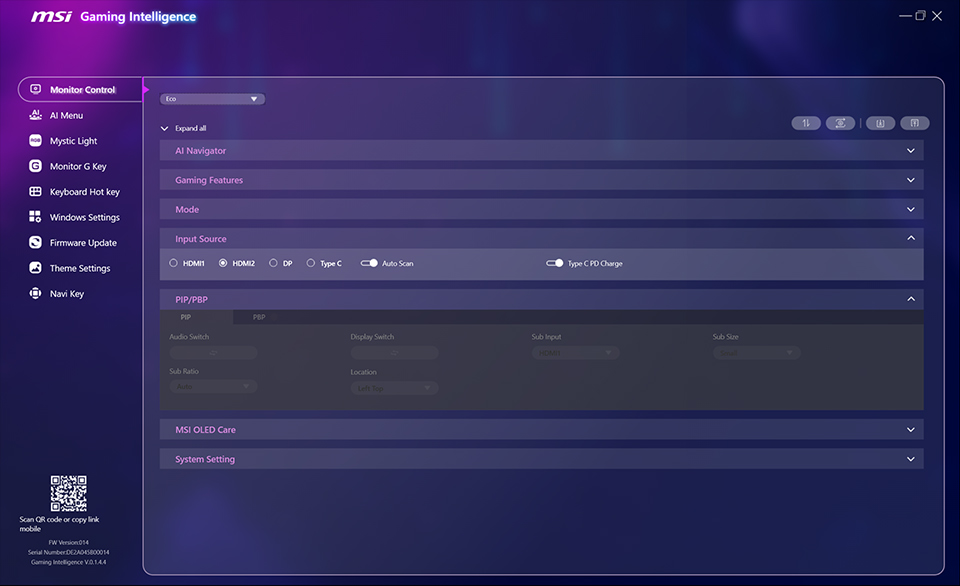
The PIP/PBP functions allow you to manage multi-spilt screen layouts with ease. You can switch audio and display sources, and customize the size, ratio, and location of windows to multiple applications simultaneously without switching on the OSD menu.
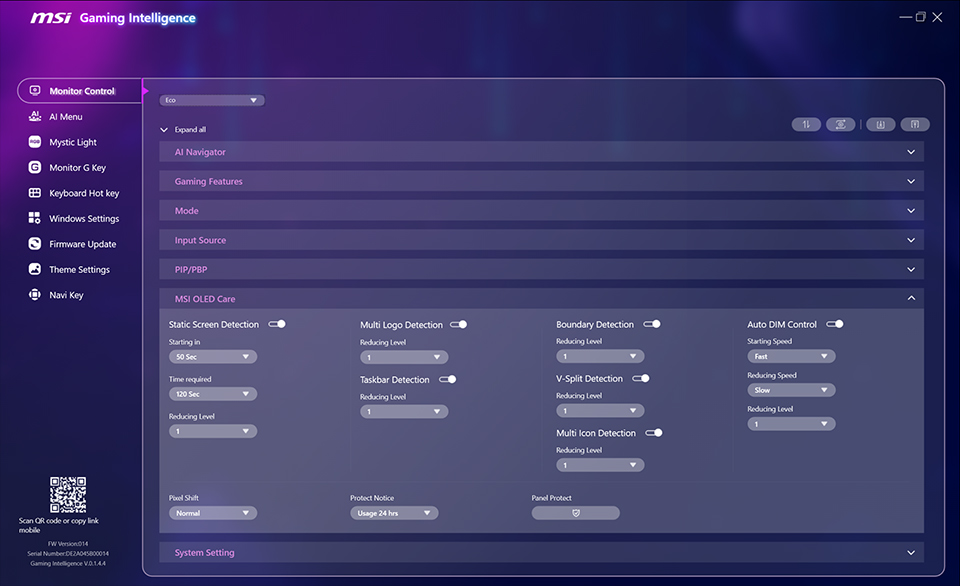
MSI OLED Care features provide a series of mechanisms to decrease the risk of OLED panel burn-in by multiple protection levels, allowing you to balance panel longevity with mandatory protection mechanisms.
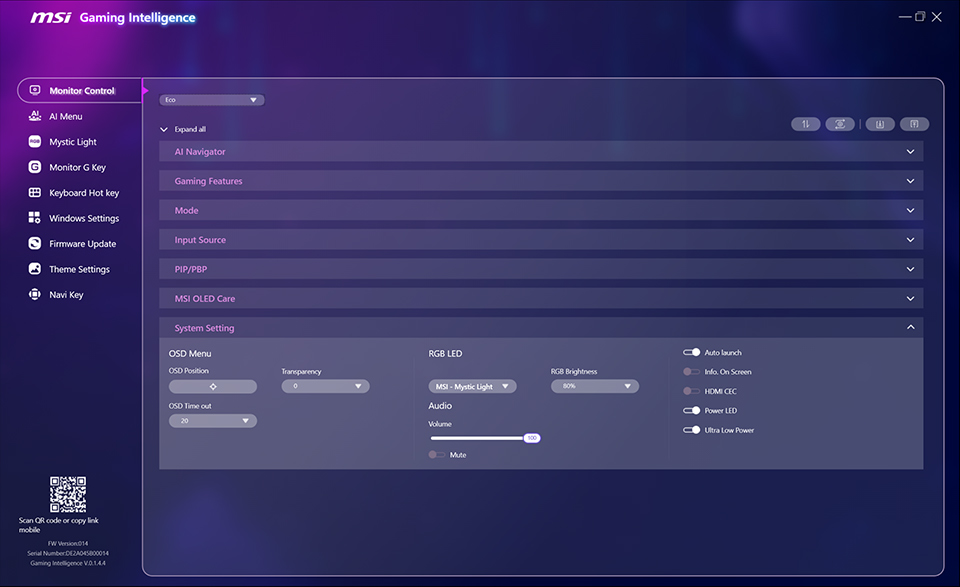
The System Setting section offers a variety of useful features, one of which is HDMI CEC technology. This feature allows the monitor to communicate with controllers, enabling them to wake the monitor and adjust modes tailored to different devices.
AI Menu
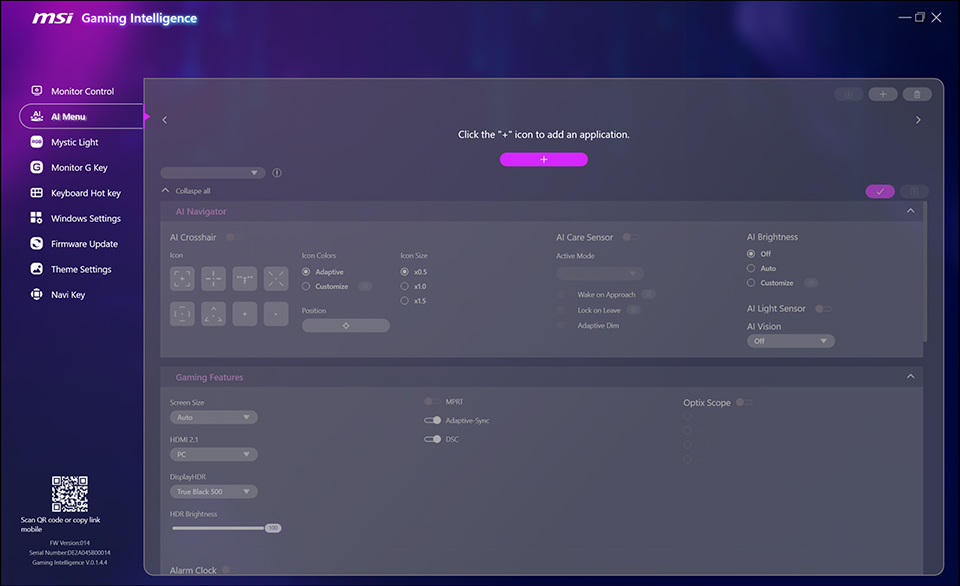
AI Menu features provide useful settings for defining and assigning specific display modes to individual applications. Once configured, G.I. can automatically switch to the preset mode you set when you change applications.
Mystic Light
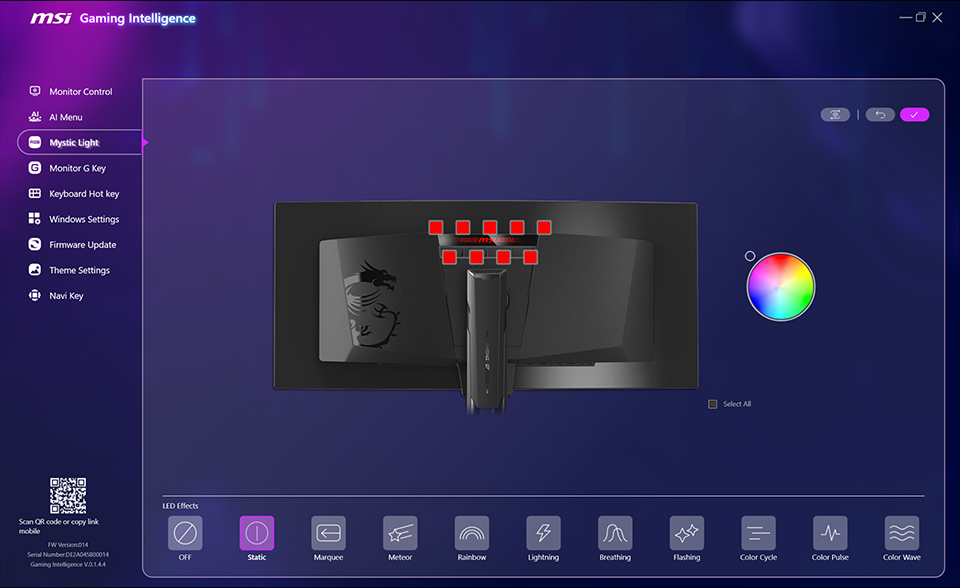
As for monitor with RGB lighting, G.I. integrates Mystic Light functions of customized colors and LED effects.
Hot Key Settings
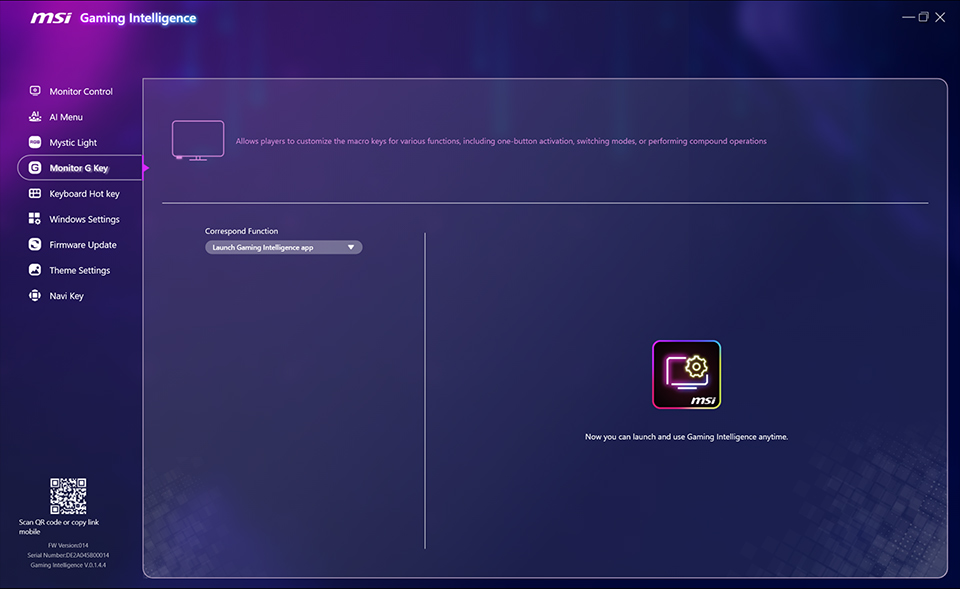
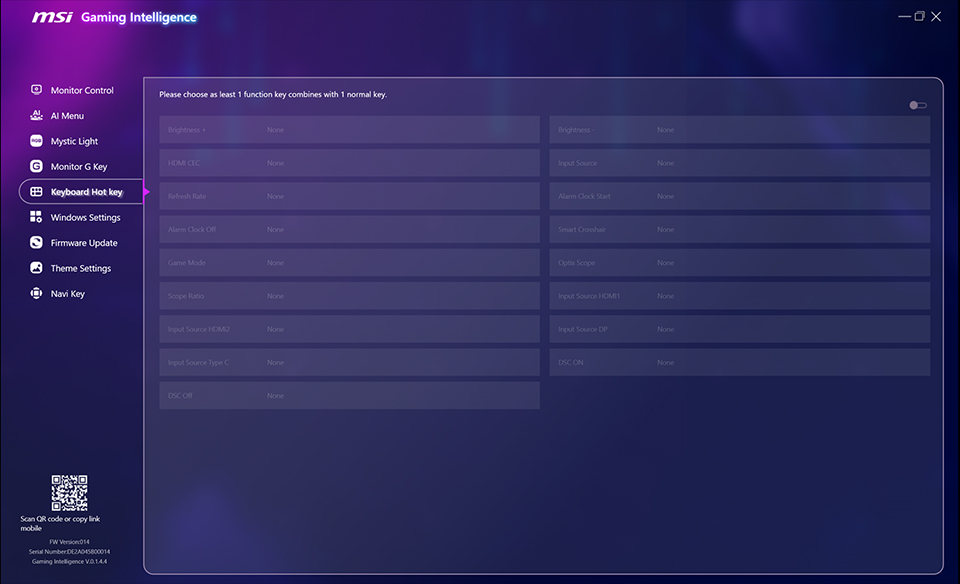
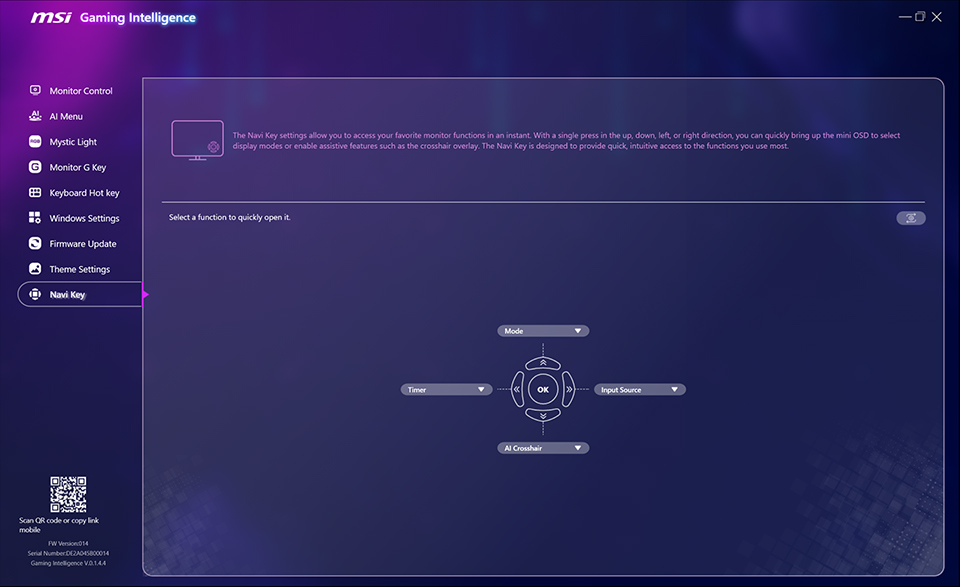
While playing games or using applications, it’s convenient for you to assign specific functions to different shortcuts using keys and the keyboard. The Monitor G Key, Keyboard Hot Key, and Navi Key on G.I. provide the shortcut settings for you to switch between different modes or enable AI Crosshair during gameplay without interruption.
Windows Settings
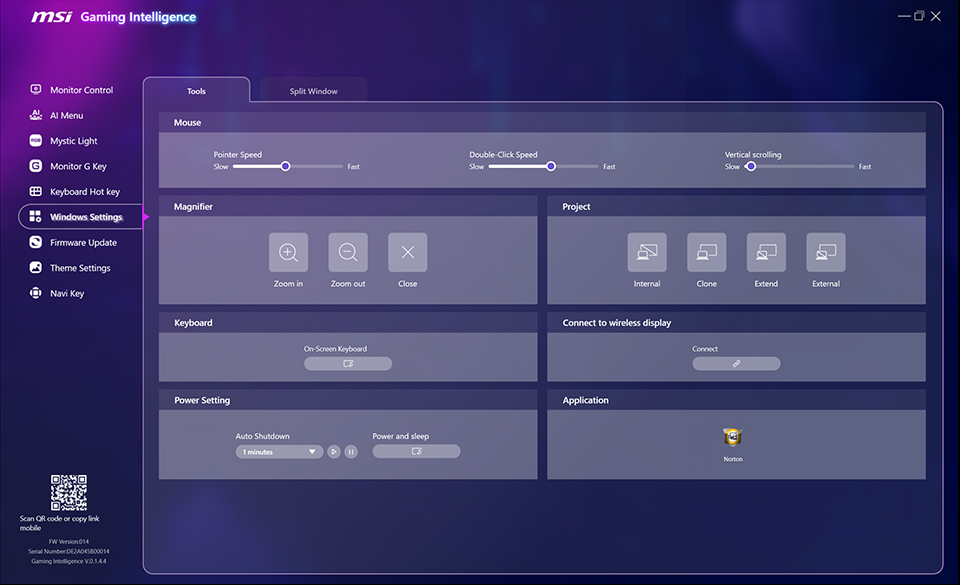
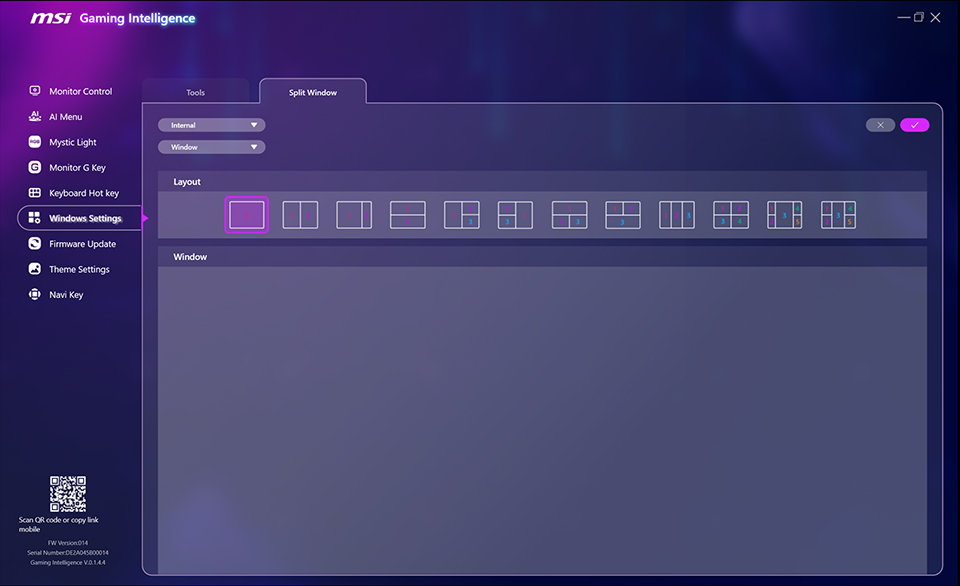
G.I. also integrates various Windows settings, such as mouse speed, magnifier, and split window as well.
Firmware Update
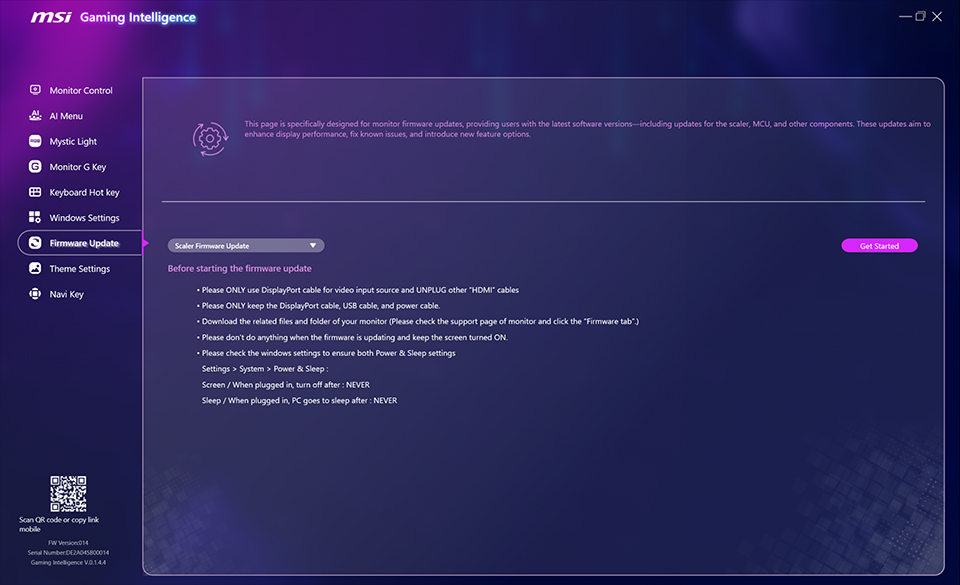
The Firmware Update feature keeps your monitor up-to-date with the latest feature enhancements and performance improvements. You can refer to MSI Monitor Firmware Upgrade Guide as below:
https://www.msi.com/blog/msi-monitor-firmware-upgrade-guide
Theme Settings
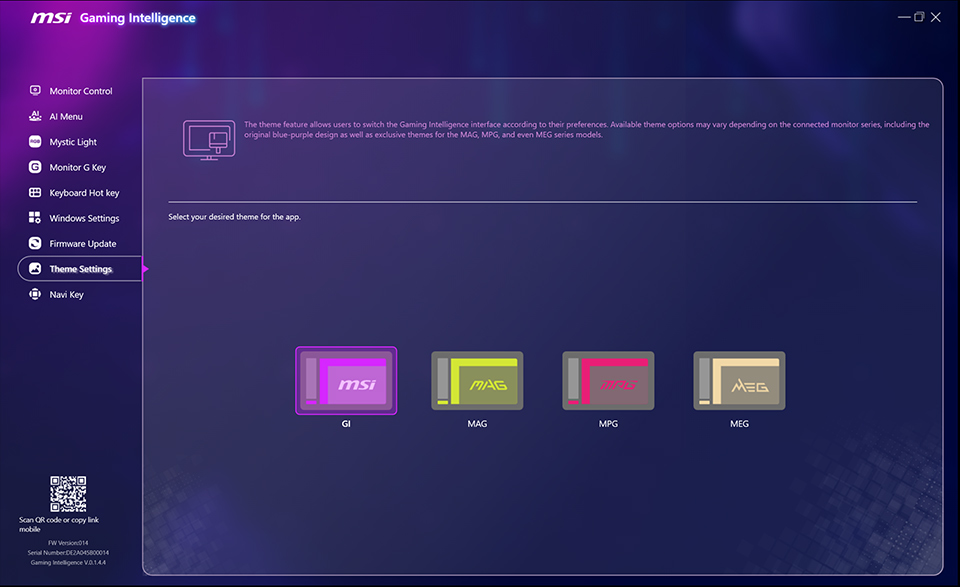
Theme Settings allow you to personalize the G.I. interface by your preference.