Stunning Visuals Smooth Gameplay DLSS 4.5 Benefits for QD-OLED Monitors
Monitors
At CES 2026, NVIDIA officially unveiled its latest breakthrough in gaming AI: DLSS 4.5 (Deep Learning Super Sampling). The primary goal of DLSS is to revolutionize the gaming experience by leveraging the power of Tensor Cores in NVIDIA GPUs. This latest iteration doesn't just double or triple your performance—it can boost original frame rates by up to six times (6x Multi-Frame Generation) while significantly enhancing image fidelity.
Since its inception, DLSS has undergone several major updates. The current DLSS 4.5 version delivers unprecedented smoothness and addresses long-standing visual artifacts, such as ghosting and strobe issues, making the fast-moving action clearer than ever. These improvements are especially beneficial for high-end displays.
In this guide, I will show you how to activate and optimize DLSS 4.5 on your desktop PC, specifically paired with a QD-OLED monitor, to achieve the ultimate, immersive gaming experience.
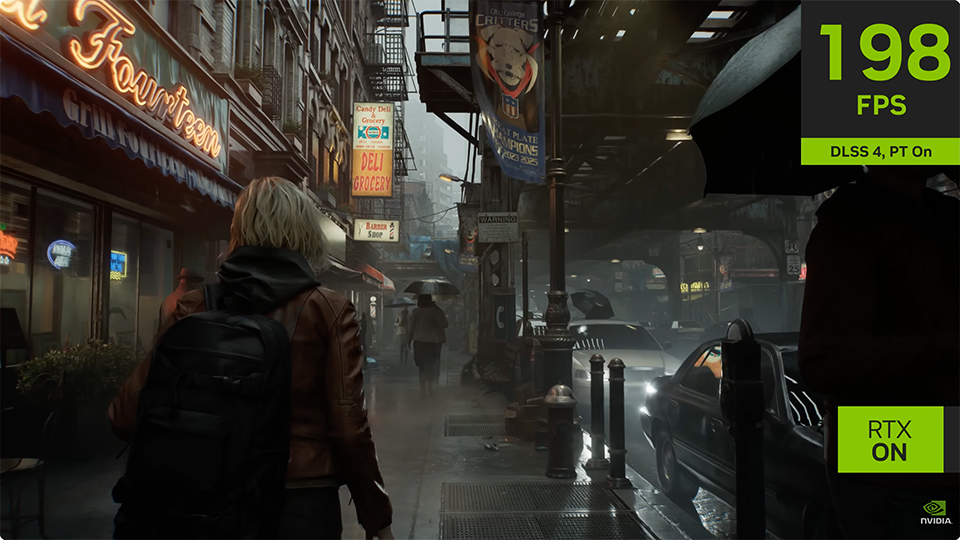
Resident Evil Requiem runs incredibly smoothly and features stunning images by enabling DLSS 4.5 enhancement.
In the current landscape of gaming hardware, both GPU and monitor technologies are evolving at a rapid pace. OLED monitors have gradually become the gold standard for gamers who pursue peak image quality and fluid performance. Thanks to their self-emissive nature, OLED panels provide vivid colors, true blacks, and near-instantaneous response times—specs that are essential for an immersive AAA gaming experience.
Furthermore, the new generation of QD-OLED panels utilizes specialized film technology designed to enhance light absorption and eliminate the distracting purple or reddish tints often caused by ambient light. By neutralizing these reflections, it allows the QD-OLED monitor to achieve deeper black levels and superior contrast, ensuring that gamers remain fully immersed without visual interference. Moreover, the panel offers 3H-rated hardness for superior scratch resistance, effectively withstanding daily wear and tear so you never have to worry about screen damage.
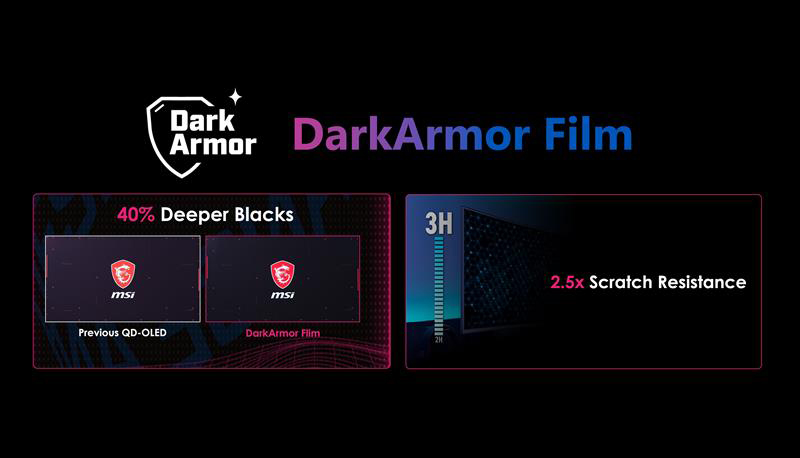
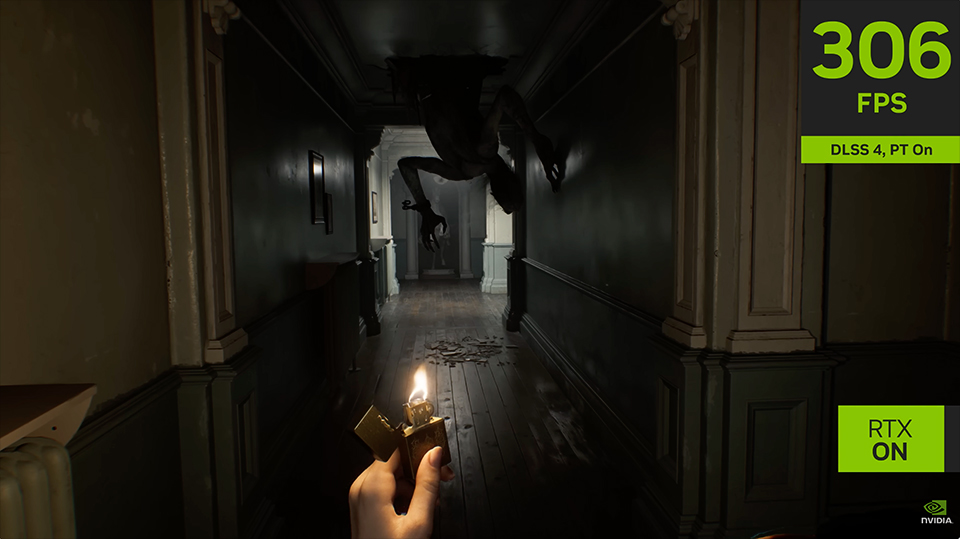
DarkArmor Film makes the screen darker and provides a more immersive experience for gamers, especially in horror titles like Resident Evil Requiem.
When discussing immersive experiences, HDR (High Dynamic Range) is undoubtedly one of the most critical features of a gaming display. Enabling HDR makes game worlds feel more realistic and natural, significantly heightening the player's sense of immersion.
However, a monitor’s HDR curve is typically pre-configured by the manufacturer, which may not suit every scenario. In certain games or specific environments, the factory settings might not align with a user’s preferences. This often results in jarring brightness shifts during scene transitions—where the image becomes either too dim or blindingly bright—causing significant eye strain for the gamer.
This is where the Uniform Luminance feature comes into play. It effectively resolves these fluctuations by allowing gamers to customize their HDR curve. By avoiding these extreme brightness shifts and adjusting the display to a level that suits their personal needs, players can enjoy a consistently comfortable and optimized visual experience. For more detailed instructions on how to use the Uniform Luminance feature, please check the link below.
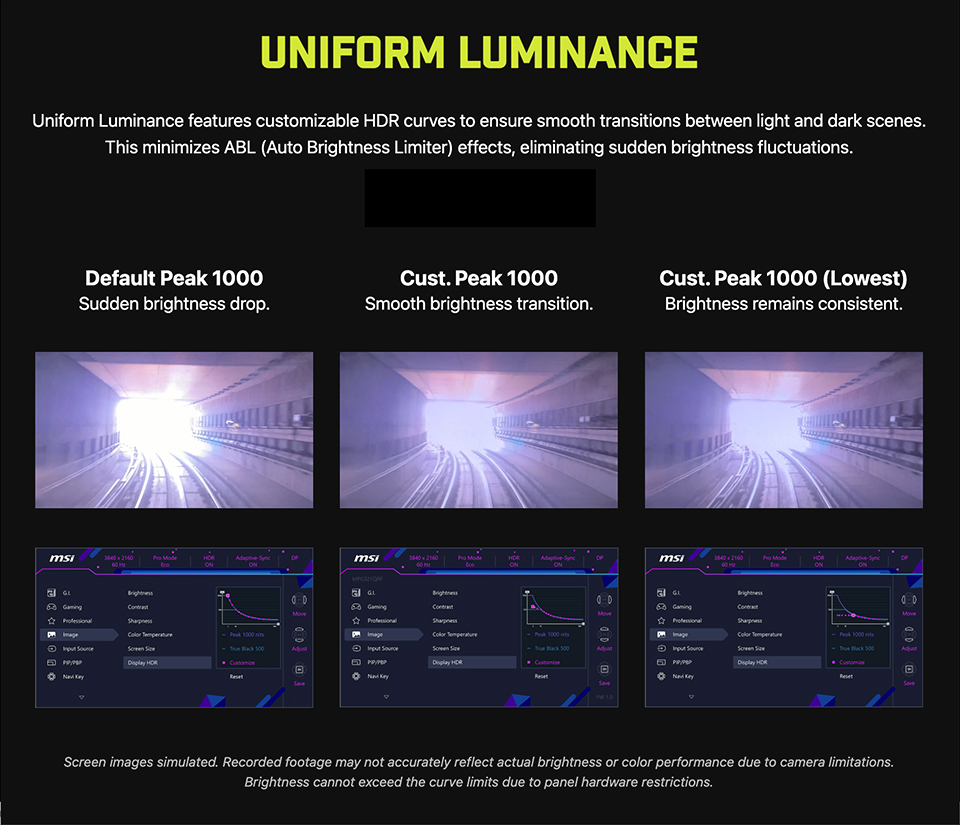
Learn more about Uniform Luminance feature of MSI QD-OLED monitor: https://www.msi.com/blog/the-unlocked-customize-hdr-brightness-apl-on-the-msi-mpg-341cqr-qd-oled-x36
Now, let’s walk through how to activate DLSS 4.5 on your system. To begin, you must ensure that both the NVIDIA App and your GeForce Game Ready Drivers are updated to the latest versions.
This is a critical step because the NVIDIA App serves as the primary control center for selecting DLSS Model Presets. Meanwhile, the latest drivers ensure that your GPU can properly utilize the new Transformer-based AI models required to run DLSS 4.5 efficiently during gameplay. Once your software and drivers are ready, we can proceed with the setup.
- Open the NVIDIA App and navigate to the Graphics tab, then select Global Settings.
- Under Driver Settings, locate "DLSS Override – Model Presets."
- Select "Recommend" to apply the optimized configuration.
- Preset L will automatically be assigned to Ultra Performance mode, while Preset M will be applied to Performance mode for the best gaming experience.
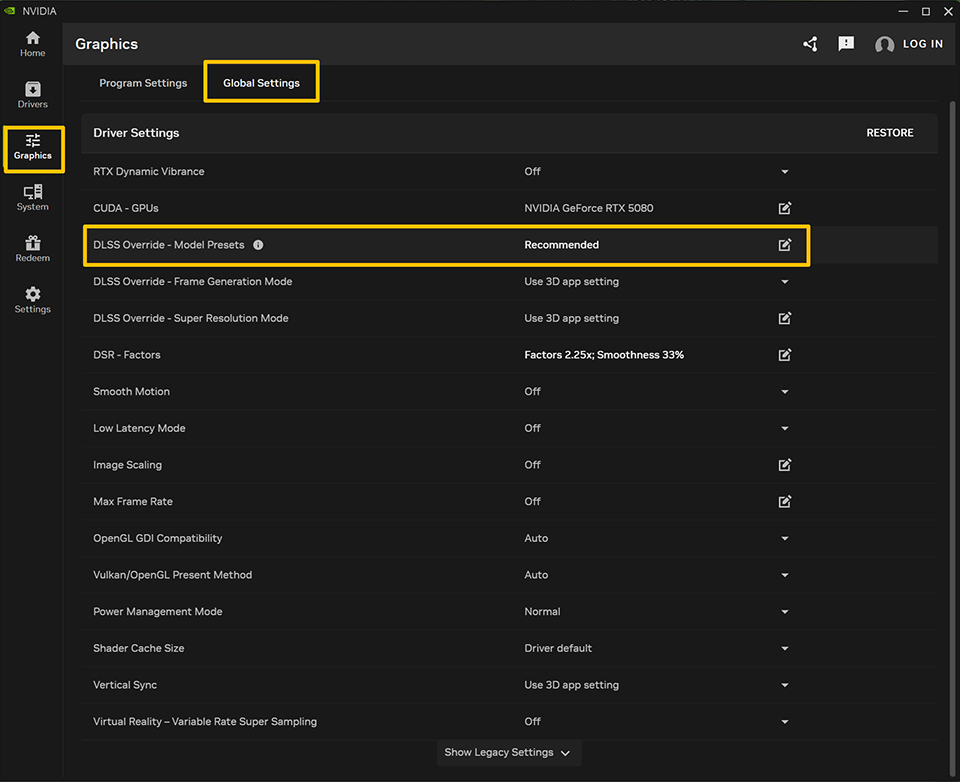
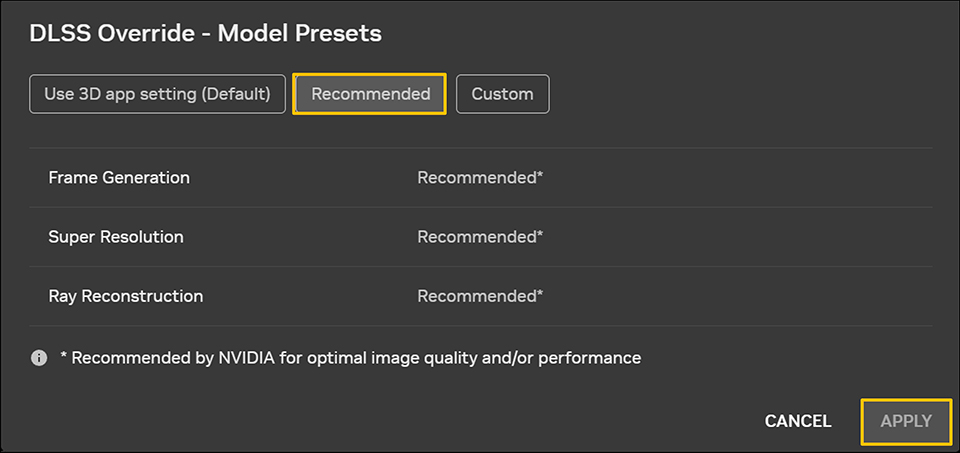
"Click on 'DLSS Override – Model Presets' and a window will pop up. Selecting 'Recommended' allows DLSS to automatically apply the optimal mapping presets. Alternatively, you can click 'Custom' to manually assign presets based on your personal preference."
Finally, launch the game and navigate to the graphics settings. Enable DLSS and choose either 'Ultra Performance' or 'Performance' mode. The game will automatically apply the corresponding DLSS model preset you selected in the NVIDIA App."
We have tested the DLSS 'Ultra Performance' and 'Performance' modes for your reference. Please see the table and images below for more details.
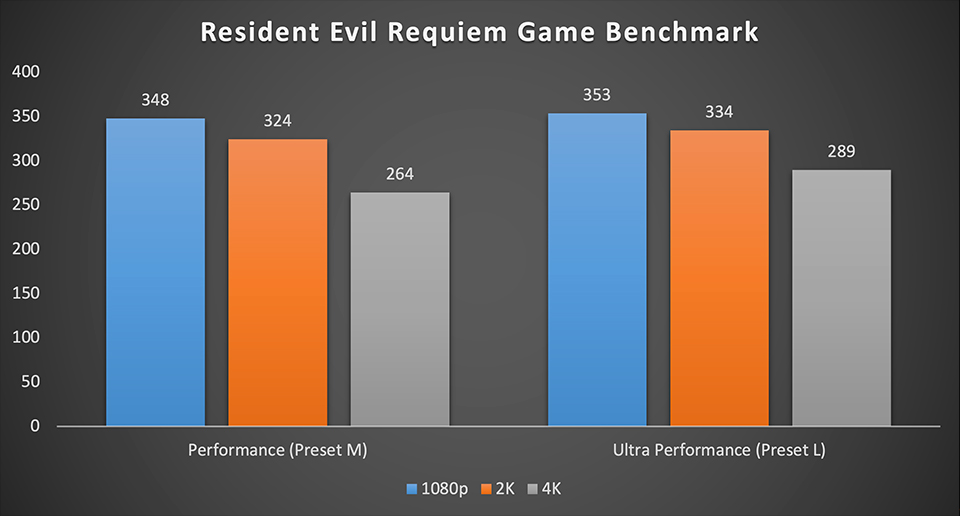
The game we test on MPG Infinite Z3 X3D model with 9800X3D and RTX 5080.
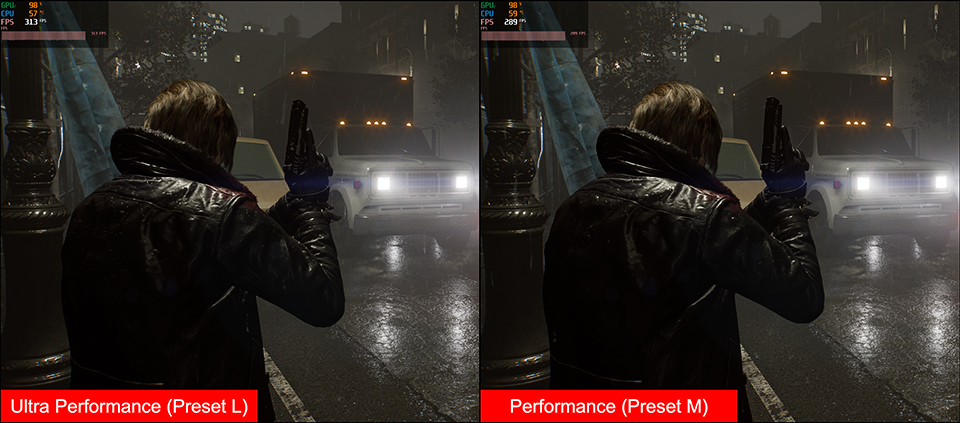
Ultra Performance (Preset L) can provide extremely high frame rates while only losing a few details in the game image. At 4K resolution, this is a very viable option for gamers.
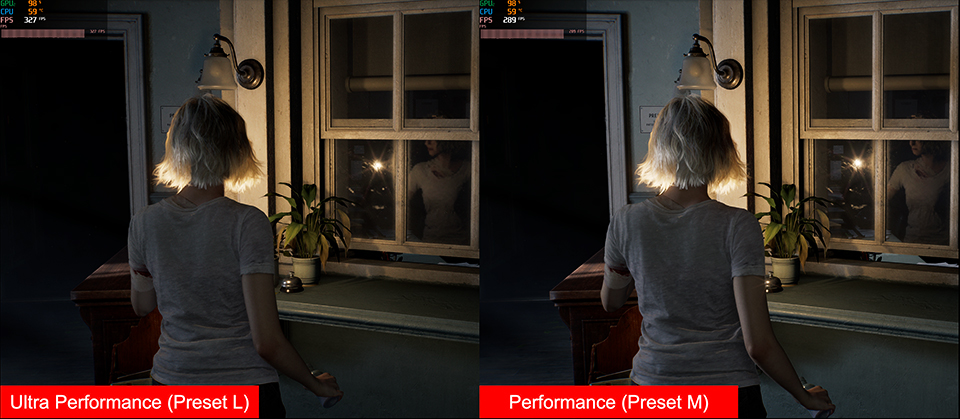
In many scenarios, Performance mode (Preset M) performs exceptionally well. In delicate scenes, for instance, ray tracing effects appear much more natural. Ultimately, both DLSS presets are excellent for gaming, depending on the type of experience the user is pursuing.
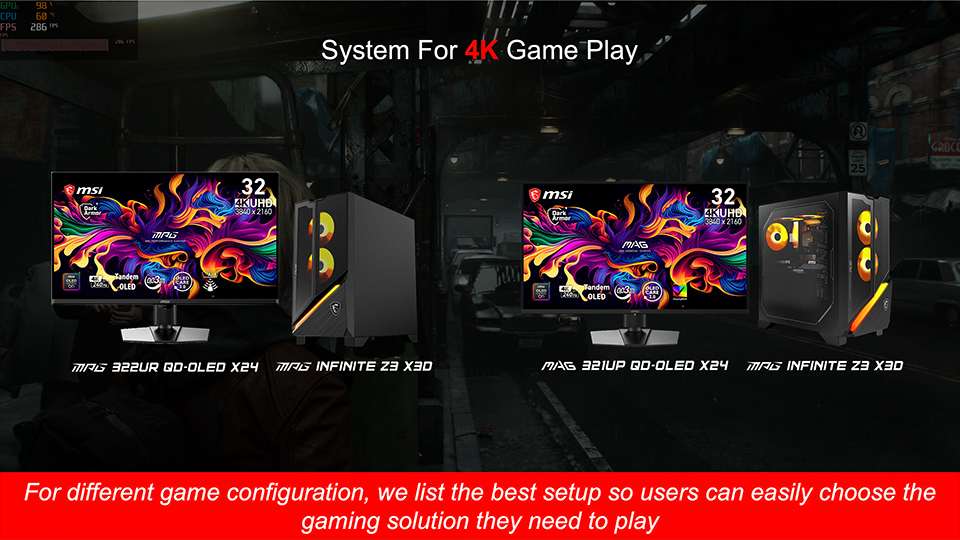
MPG Infinite Z3 X3D: https://www.msi.com/Desktop/MPG-Infinite-Z3-X3D-y
MPG 322UR QD-OLED X24: Coming Soon
MAG 321UP QD-OLED X24: https://www.msi.com/Monitor/MAG-321UP-QD-OLED-X24
MPG 322UR QD-OLED X24: Coming Soon
MAG 321UP QD-OLED X24: https://www.msi.com/Monitor/MAG-321UP-QD-OLED-X24

Game Benchmark Finder is now live!
https://www.msi.com/Landing/find_my_favor
https://www.msi.com/Landing/find_my_favor

Curious how MSI pre-built desktops perform in your favorite games?
Visit Game Benchmark Finder to explore real-world FPS results across various titles and find the perfect MSI pre-built pc that suits your needs.
Visit Game Benchmark Finder to explore real-world FPS results across various titles and find the perfect MSI pre-built pc that suits your needs.